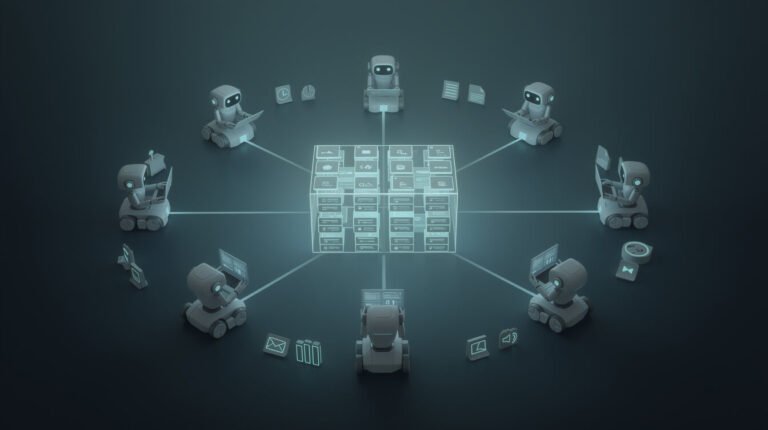
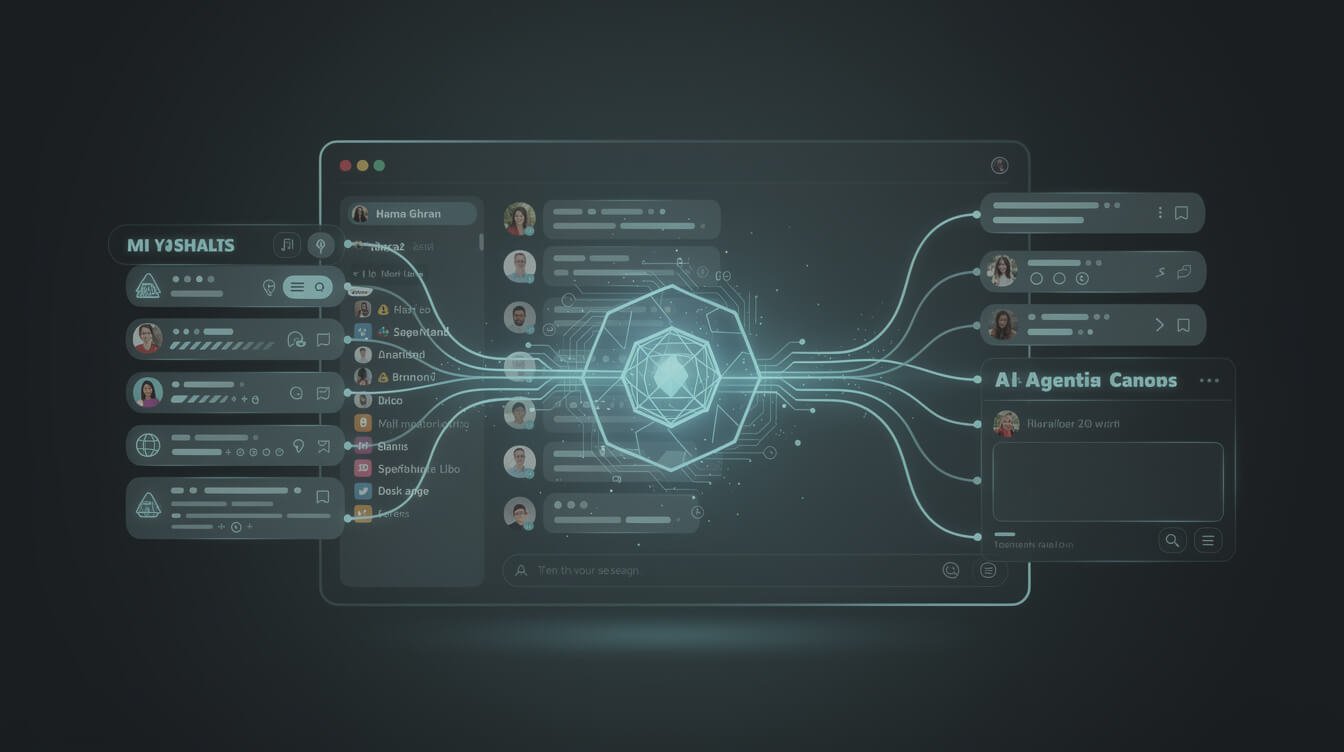
If you have ever wished your AI could just read the thread, catch up on what your team decided, and drop a reply in the right channel without you copy-pasting anything, that is exactly what a Slack MCP server unlocks. It is the piece of plumbing that gives an AI agent like Claude real, permissioned access to your Slack workspace so it can search messages, summarize channels, and post updates on its own.
I run ten autonomous brands out of a single command center, and Slack (plus Telegram) is where my agents report for duty every day. In this guide I am going to skip the vendor marketing and show you what a Slack MCP server really is, the two very different ways to run one, how I actually wired mine, and the one security decision most tutorials quietly skip. No developer degree required — just the operator’s-eye view I wish I had when I started.
What a Slack MCP Server Actually Does (in Plain English)

MCP stands for Model Context Protocol — a common language that lets AI models talk to outside tools in a standard way. If that phrase is new to you, I break the whole concept down in my plain-English guide to what an MCP server is. The short version: an MCP server is a small program that exposes a specific app’s abilities as “tools” your AI can call on demand.
A Slack MCP server is that translator for Slack specifically. Instead of you clicking around channels, the server hands your AI a menu of Slack actions it can perform: search across messages and files, read the last 50 messages in a channel, list who is in a workspace, send a message, reply in a thread, and even create or update canvases. Your agent decides which tool to call, the MCP server executes it against Slack’s API, and the result comes back as clean text the model can reason over.
Here is why that matters for a one-person operation. Slack is where decisions live — client approvals, “can you ship this today,” the link someone dropped three days ago. Without an MCP server, your AI is blind to all of it. With one, you can ask “summarize everything that happened in #clients while I was asleep and flag anything that needs me,” and get a real answer grounded in your actual workspace. It turns Slack from a place you have to monitor into a place your agent monitors for you.
To make it concrete, here are things you can do the moment a Slack MCP server is live: ask “what did the team decide about the pricing page?” and get an answer stitched from the actual thread; have your morning agent post a digest of overnight activity to a channel; pull every message where a client mentioned a deadline and turn it into a task list; or let a support agent draft a reply in a thread and wait for your thumbs-up before sending. None of that requires you to build a custom app — the tools already exist inside the server, and the AI picks the right one for the request.
Think of it the same way a GitHub MCP server gives an agent hands inside your codebase — the Slack version gives it hands inside your team’s conversation.
The Two Ways to Run a Slack MCP Server

This is the fork in the road nobody explains clearly, and picking the wrong path wastes an afternoon. There are essentially two flavors of Slack MCP server, and they serve different people.
1. The official Slack remote MCP server
Slack now ships its own hosted MCP server. It uses OAuth authentication, respects every permission already set in your workspace, and is aimed at connecting trusted assistants like Claude or Perplexity to enterprise Slack. It is genuinely secure and low-maintenance because Slack runs it for you — nothing to host, nothing to update. The trade-offs: it leans heavily toward search and read use cases, the richest features are gated behind paid and Enterprise plans, and admin approval is often required to turn it on. If you are on a company plan and you mostly want your AI to find and summarize things, start here.
2. A self-hosted, open-source Slack MCP server
The community has built excellent open-source servers — the most popular is korotovsky/slack-mcp-server, which sits north of 1,700 stars. You run it yourself (a Docker container or a single binary), and it supports multiple transports (Stdio, SSE, HTTP), a proxy option, and — crucially — it works with either a bot token or your own user token. The user-token route means you can get read access working in minutes without waiting on an admin to bless a new app. It also does the full range: search, read, send messages, reply in threads, and manage canvases.
For most solopreneurs and small teams, the self-hosted route is the one that actually fits. You own it, it is free, and it does not care what Slack plan you are on. The cost is that you are now responsible for the token, the hosting, and the security posture — which is exactly the conversation we will have a couple of sections down.
There is also a third, lazier option worth naming: managed middleware from automation vendors that wraps Slack MCP for you. It is fine if you never want to touch a terminal, but you pay monthly and you give a third party a seat at your workspace. I would rather own the wiring.
How I Wired My AI Agents Into Slack (A JonOps Build Log)
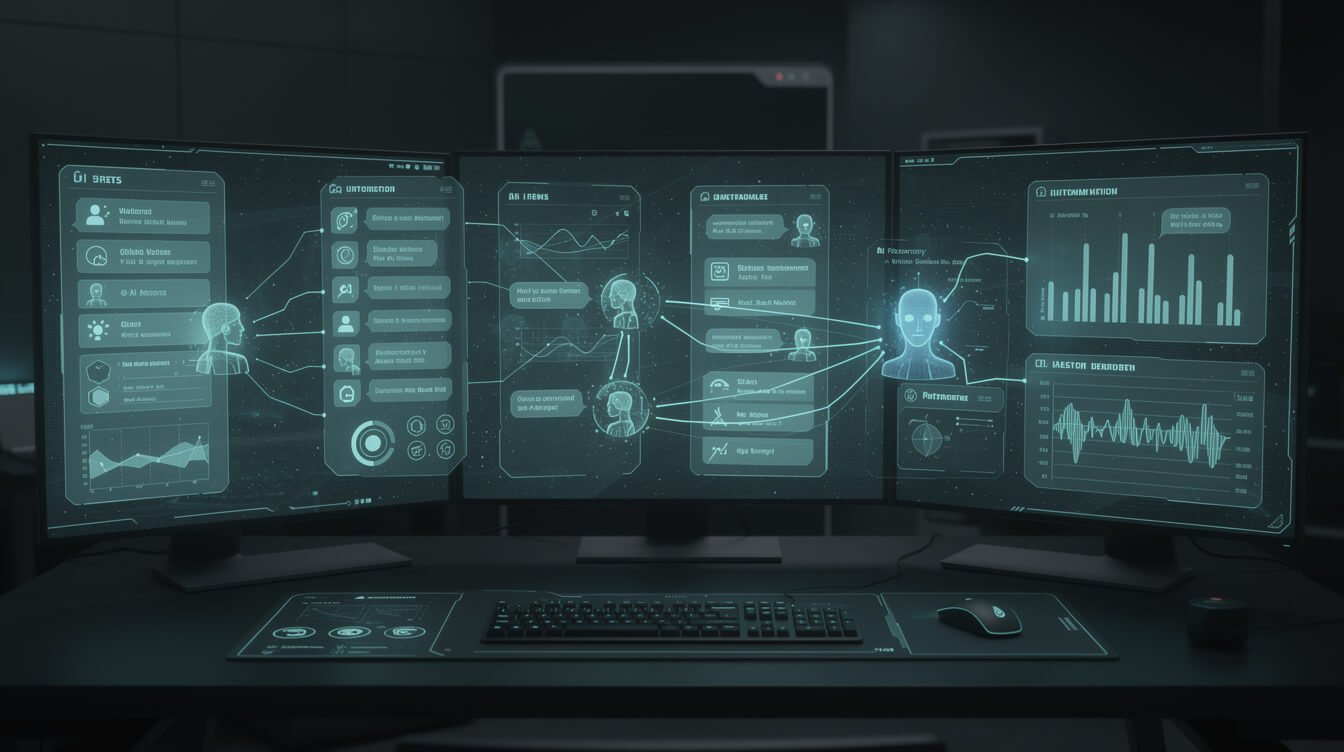
Let me show you the real receipt instead of a hypothetical. Across my brands, agents run on a schedule inside Docker containers — one wakes up, writes a blog post, generates images, publishes, and goes back to sleep. The problem every operator hits at scale is not doing the work; it is knowing the work got done. That is where Slack comes in.
Each agent ends its run by posting a status line into a dedicated channel: green check, what it shipped, and the live URL. When I open Slack in the morning, one channel is my entire fleet’s standup. If something failed, it says so, in plain language, with the error. I use the same pattern with lightweight Telegram alerts for instant pings, but Slack is where the searchable, threaded history lives — which is the part an MCP server can then read back.
The upgrade a Slack MCP server adds on top of “agents that post” is “agents that listen.” Now I can ask my assistant: “Read #fleet-status for the last 24 hours and tell me which brands did not publish.” It calls the server’s search and channel-history tools, reasons over the results, and answers. No dashboard to build, no database query to write — the conversation is the database. This is the exact kind of connective tissue I set up in done-for-you builds, because it is the difference between an AI that talks and an AI that participates.
The unlock is subtle but huge for a solo operator: your context stops living in your head. When a client asks “did we ever discuss the analytics scope?” I do not scroll — I ask my agent to search Slack and it surfaces the exact message, date and all. Multiply that across ten brands and the compounding is obvious. The workspace becomes an institutional memory that an AI can query on demand, and I stop being the single point of recall for everything my businesses have ever decided.
If you want to see how the agent side of this loop is orchestrated, my walkthrough on connecting Claude Code to your tools with MCP covers the agent-runner half of the picture.

⚡ GET THE AI EDGE
Weekly AI tips that actually save you time and money. No fluff, no hype — just what works.
Setting Up Your First Slack MCP Server, Step by Step
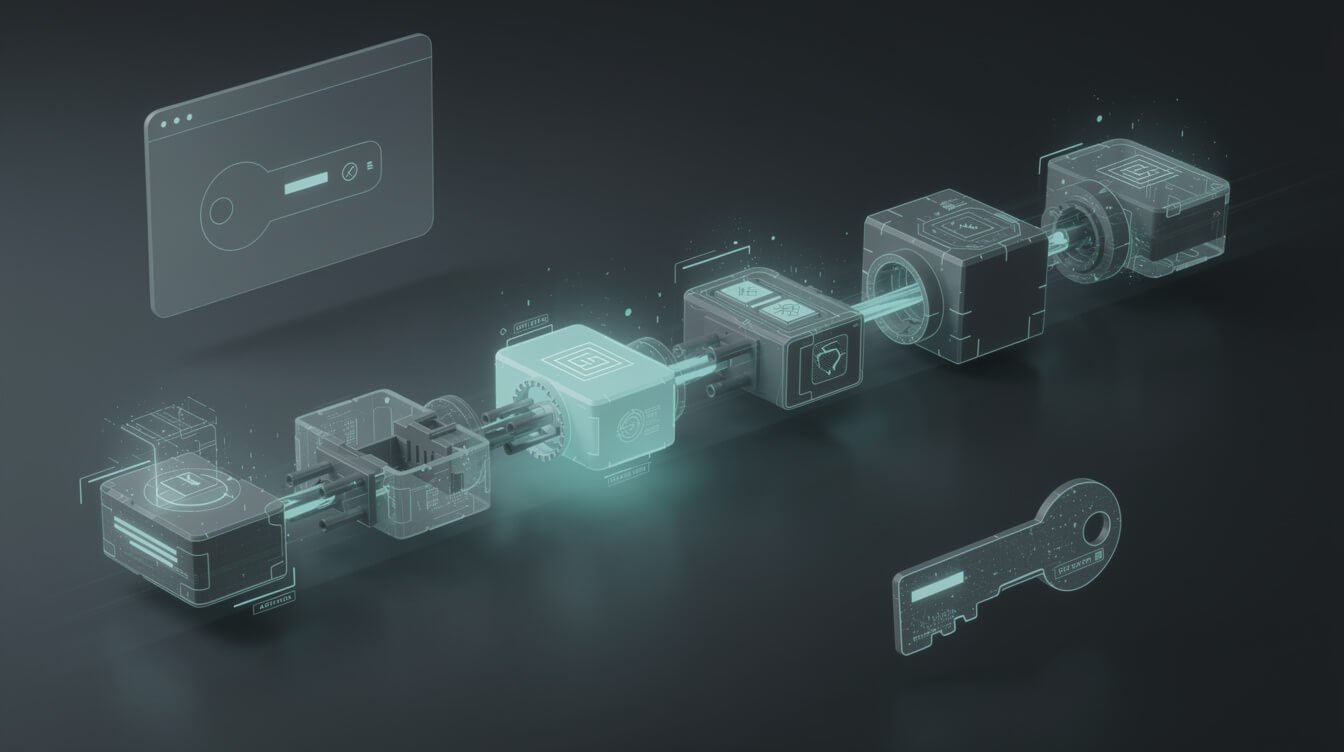
Here is the fastest path to a working Slack MCP server using the self-hosted open-source route. You do not need to be a developer — you need to be willing to copy a few values into a config file.
- Get your Slack token. The quickest start is a user token. In the community servers this is usually an
xoxcbrowser token paired with anxoxdcookie value, which you can pull from your logged-in Slack session. If you would rather do it the “proper” way, create a Slack app at api.slack.com, add the scopes you need (start with read-only:channels:history,search:read,users:read), install it, and copy the bot token. - Run the server. The path of least resistance is Docker: pull the image, pass your token(s) as environment variables, and start it. One command and the server is listening. No token in your shell history, no global install to maintain.
- Point your AI client at it. In Claude Desktop, Claude Code, or any MCP-capable client, add the server to your MCP config with its command and environment. On restart, the client discovers the Slack tools automatically. If you have ever added an MCP server before — say a Slack-to-n8n workflow bridge — this step will feel familiar.
- Test with a read. Ask your agent to “search Slack for the last message mentioning invoices.” A safe read proves the connection before you ever grant write access. If it comes back with a real result, you are wired in.
- Only then, enable writes. Once reading works and you trust it, add the send-message scope and try a low-stakes post to a test channel.
A quick sanity tip: after you connect the server, ask your client to list the Slack tools it can now see before you try to use them. If the tool list comes back empty, it is almost always a token or scope problem, not a code problem — the server started but Slack rejected the credentials. Fixing the scope is a one-line change, but you will chase your tail for an hour if you assume the server itself is broken. Verifying the tool list first saves that hour.
That is the whole loop: token, run, connect, read, then write. Most people are searching their own workspace through an agent inside fifteen minutes. For a menu of other servers worth adding once Slack is live, see my roundup of the MCP tools that give Claude superpowers.
Read-Only or Read-Write? The Security Call That Actually Matters

Here is the decision every tutorial glosses over, and the one I care about most as someone whose agents run unattended: how much power do you actually hand your AI inside Slack?
Read access is close to harmless. The worst case of an over-eager agent reading too much is that it sees a channel you would rather it did not — a real reason to scope tokens to specific channels, but not a five-alarm risk. Write access is a different animal. An agent that can send messages can, in theory, post the wrong thing to the wrong channel, or reply to a client thread when you only wanted an internal draft. That is embarrassing on a good day and damaging on a bad one.
My rules, learned from running this in production:
- Start read-only, always. Grant the narrowest read scopes, get value from summaries and search first, and live with it for a week before you even consider writes.
- Sandbox your writes. When you do enable posting, point the agent at a dedicated test or internal channel — never let its first write go to a client-facing space.
- Keep a human in the loop for anything outbound. My agents draft and post to internal status channels freely, but anything that a customer would see gets staged for my approval. Automate the decision-support, not the irreversible send.
- Treat the token like a password. It is one. Store it as an environment variable, never in a file you commit, and rotate it if a machine is ever compromised. User tokens carry your permissions, so a leaked one is a leak of everything you can see.
Do this and a Slack MCP server is one of the safest, highest-leverage integrations you can add. Skip it and you have handed an autonomous system a megaphone in your team’s living room. The technology is not the risk; the scopes are.
Slack MCP Server FAQ (Frequently Asked Questions)

Do I need a paid Slack plan to use a Slack MCP server?
For the self-hosted open-source route, no — a user or bot token works on standard workspaces. The official Slack-hosted MCP server reserves its richest features for paid and Enterprise plans and often needs admin approval. If budget is the constraint, start self-hosted.
Is a Slack MCP server safe?
Yes, when you scope it correctly. Read-only access is very low risk. The safety question is really about write permissions and how well you guard the token. Start read-only, sandbox your writes, and treat the token like the password it is.
Which Slack MCP server should a solopreneur pick?
If you want zero maintenance and mostly need search and summaries on a company plan, use the official Slack server. If you want full read/write, no plan restrictions, and to own the setup, self-host an open-source server like korotovsky/slack-mcp-server. Most solo operators are happier self-hosting.
Can the AI post messages, or only read them?
It can do both, if you grant the scopes. Servers expose send-message and thread-reply tools alongside search and read. Whether your agent can write is entirely up to which permissions you attach to its token — which is exactly why I recommend starting read-only.
Do I need to code to set one up?
No. If you can copy a token into a config file and run one Docker command, you can stand up a Slack MCP server. The hardest part is deciding which scopes to grant, not writing any software.
How is this different from a normal Slack bot or a Zapier integration?
A traditional bot or Zap runs fixed, pre-built automations you wire up in advance. An MCP server instead hands your AI a live toolbox and lets the model decide what to do in the moment — search this, read that, reply here — based on your natural-language request. It is dynamic reasoning over your workspace, not a static trigger-and-action recipe.
Final Thoughts: Give Your Agent a Seat in the Room
A Slack MCP server is one of those upgrades that sounds technical and turns out to be common sense: your AI cannot help with conversations it cannot see. Once you connect it, the assistant stops being a clever chatbot in a separate tab and becomes a teammate that reads the room, catches you up, and — when you trust it — speaks up in the right channel.
Start small. Self-host an open-source server, grant read-only scopes, and ask your agent to summarize a busy channel tomorrow morning. That single working loop will teach you more than any spec sheet, and it is the foundation everything else — status reporting, autonomous standups, cross-channel search — gets built on. The operators who win in 2026 are not the ones with the most tools; they are the ones whose tools can finally talk to each other. Wire this one up, and your workspace becomes something your AI can actually work inside.

Want the playbook behind the systems?
Get the AI Playbook — the exact patterns I use to wire agents into Slack, publish content, and run autonomous brands solo. No fluff, just the builds that work.
📥 FREE: THE AI PLAYBOOK
The exact tools and workflows I use to run a one-person agency. 25 years of marketing experience distilled into an actionable guide. Yours free.

AI & Digital Marketing Strategist
With over 25 years in digital marketing, e-commerce, sales, and international business, Jon Jones is a seasoned entrepreneur dedicated to empowering small businesses through innovative AI solutions. His journey began in investment banking on Wall Street, guiding companies through capital acquisition and complex markets, and has expanded to include expertise in web development, brand design, product development, and courses and training.
Fluent in Mandarin and with a rich foundation in both finance and tech, Jon launched JonJones.ai to provide accessible, transformative tools for small businesses to streamline operations, generate leads, and build sustainable growth. His mastery of AI, automation, and digital strategy has enabled numerous businesses to bridge the gap between traditional practices and modern technology, ensuring they thrive in today’s digital landscape.