Most solopreneurs use GitHub the old way: manually copying code into Claude’s chat window, typing out what they want changed, then pasting it back. It works. But it’s slow, it’s repetitive, and it leaves most of GitHub’s power completely untouched.
The GitHub MCP Server changes that equation entirely. It gives your AI agent direct, authenticated access to GitHub — so you stop being the copy-paste middleman between your AI and your codebase. Whether you’re managing a content site, running autonomous AI systems, or just trying to ship faster with AI, this is one of the most practical tools in the MCP ecosystem right now.
This guide covers everything a solopreneur needs to know: what the GitHub MCP Server actually is, what it can do, and how to get it running in under 10 minutes — no GitHub Copilot or enterprise plan required.
What Is the GitHub MCP Server?
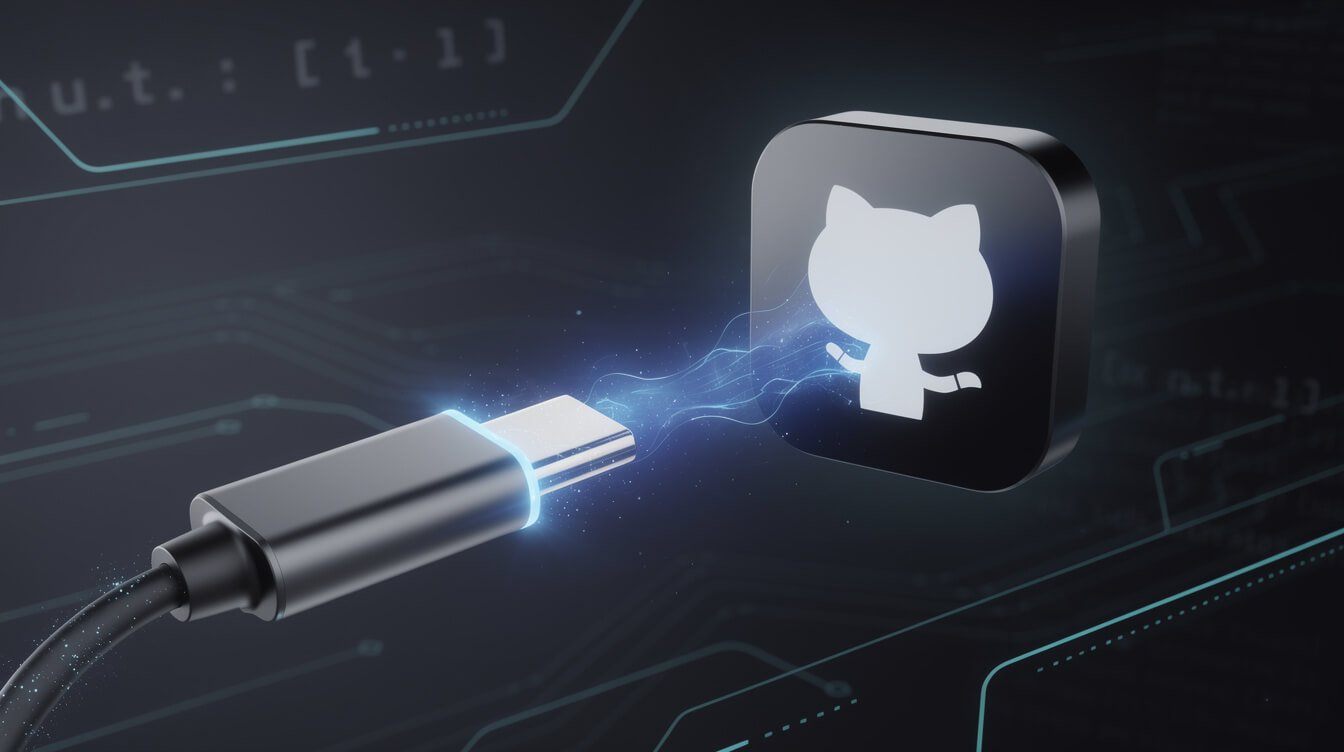
The GitHub MCP Server is GitHub’s official connector that lets AI agents talk directly to your GitHub account. To understand why that matters, you need a quick primer on what MCP actually is.
MCP — the Model Context Protocol — is the open standard Anthropic built to let AI assistants connect to external tools and data sources. Think of it like USB-C for AI: instead of every platform building proprietary integrations with every tool, MCP creates one universal connection standard. You plug in an MCP server, and your AI can suddenly read from and write to whatever that server exposes.
The GitHub MCP Server is GitHub’s own official MCP implementation. This is not a third-party hack or a community workaround — GitHub built it and maintains it directly. As of June 2026, the repository has over 30,000 stars, making it one of the most popular MCP servers in the entire ecosystem.
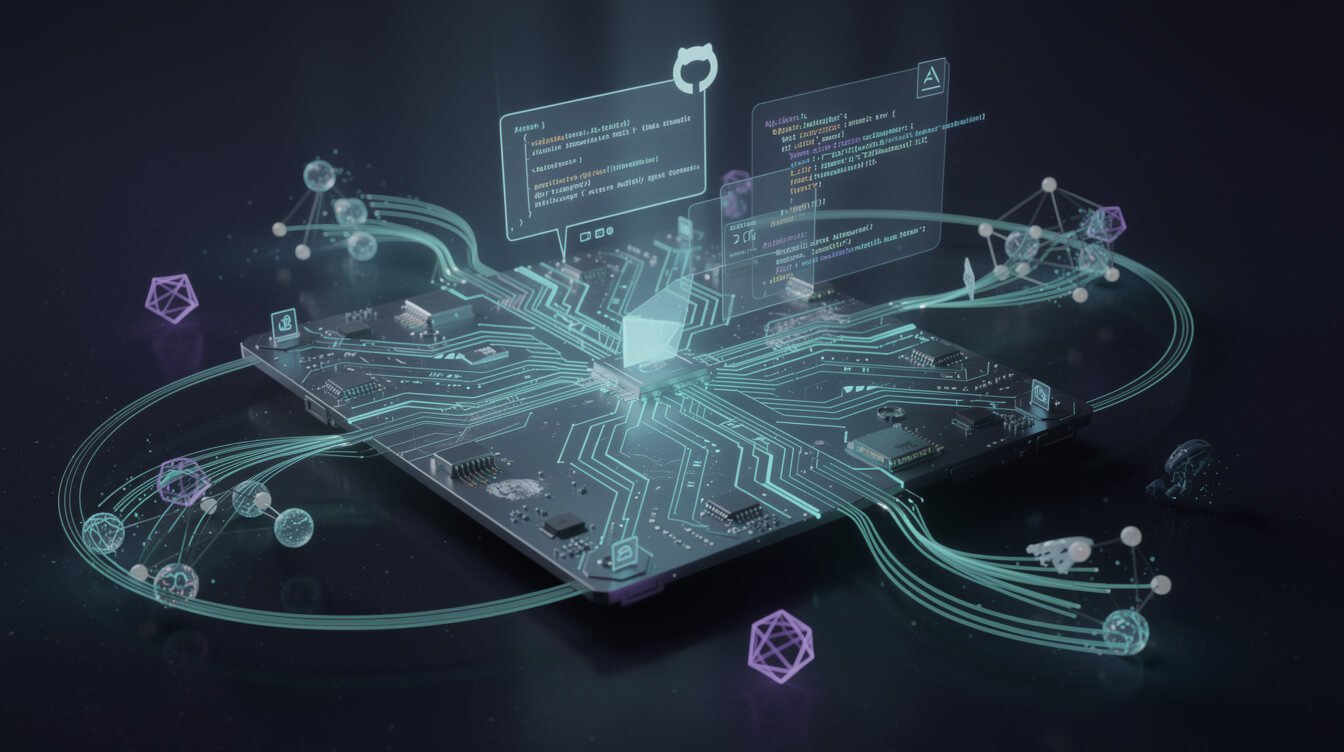
When you connect the GitHub MCP Server to Claude Desktop or Claude Code, your AI agent gains real-time, authenticated access to your GitHub account. It can search repositories, read files, create issues, open pull requests, and much more — all without you copying a single character.
What Can the GitHub MCP Server Actually Do?
The GitHub MCP Server ships with over 40 individual tools organized into logical toolsets. Here’s what that looks like in plain English for operators who don’t speak developer:
Repository Management
- List all your repositories (public and private)
- Create new repositories from scratch
- Fork any public repository
- Search across millions of GitHub repos for anything
- Read any file in any repository you have access to
- Create, update, or delete files directly in a repo
Issue Tracking
- List, filter, and search all open issues
- Create new issues with full markdown content
- Add comments to existing issues
- Assign labels, milestones, and update issue status
Pull Request Management
- List and search pull requests by status or keyword
- Create pull requests between branches
- Request reviews from specific collaborators
- Merge pull requests when conditions are met
- Add inline review comments to specific lines
Code Search
- Search your entire codebase with natural language queries
- Find specific functions, patterns, or strings across all repos
- Search commits by message, author, or date range
Branches, Tags, and Releases
- Create and list branches programmatically
- Tag releases with version numbers
- Retrieve full commit history with diffs
One feature worth calling out for cautious operators: read-only mode. Set GITHUB_READ_ONLY=1 in your configuration and your AI agent gets complete visibility into your repositories with zero ability to make changes. Perfect for code review or research workflows where you want AI analysis without the risk of an accidental push.
Why Solopreneurs Should Use the GitHub MCP Server Right Now

If you’re building anything with Claude Code or running AI agents in your business, the GitHub MCP Server is the missing piece that transforms your AI from a conversational assistant into a genuine coding partner.
Here’s the before/after contrast that matters:
Before GitHub MCP Server: You want Claude to review a specific file in your codebase. You open GitHub, navigate to the file, copy the full content, paste it into your Claude conversation, ask your question, get the answer, then manually implement the changes. Five steps. Constant context-switching. Easy to lose track.
After GitHub MCP Server: You tell Claude: “Review src/newsletter-pipeline.py and flag any inefficiencies.” Claude fetches the file directly, analyzes it with full context, and gives you specific, actionable feedback — in under 30 seconds, with no copy-pasting required.
That’s the simplest use case. The deeper value appears when AI agents operate with GitHub access as part of a larger autonomous workflow:
- Turn customer support emails into GitHub issues automatically
- Keep changelogs updated after every merge without any manual effort
- Run AI-assisted code review before anything touches your main branch
- Search your entire historical codebase for solutions to current problems
- Have agents maintain documentation that actually reflects the current code
I use the GitHub MCP Server as part of my JonOps stack: when a Claude Code session spins up for a build task, the agent has direct repository access rather than relying on whatever fragments I manually copied in. The quality difference in the agent’s output is significant — it sees full context, not a snapshot.

Get the Free AI Automation Playbook
The exact systems I use to run autonomous AI businesses — step-by-step, no fluff. Join thousands of operators building smarter.
How to Set Up the GitHub MCP Server in 10 Minutes
There are three ways to run the GitHub MCP Server. I’ll cover the two most practical options for solopreneurs, plus a note on the enterprise-tier approach.
Option 1: Claude Desktop (Easiest — Start Here)
This is the recommended setup for anyone using Claude Desktop on Mac or Windows. What you need: Claude Desktop (free or Pro tier), a GitHub account, and Docker Desktop installed.
Step 1: Generate a GitHub Personal Access Token (PAT)
Go to GitHub → Settings → Developer Settings → Personal Access Tokens → Tokens (classic). Click “Generate new token.” For minimum viable scopes, select: repo, read:org, read:user. Copy the token immediately — GitHub shows it only once.
Step 2: Install Docker Desktop
The local GitHub MCP Server runs as a Docker container. Download Docker Desktop for your OS from docker.com and let it run in the background. You don’t need to understand Docker to use it here — it’s just the runtime the server needs.
Step 3: Edit Your Claude Desktop Config

⚡ GET THE AI EDGE
Weekly AI tips that actually save you time and money. No fluff, no hype — just what works.
Open the Claude Desktop configuration file. On Mac: ~/Library/Application Support/Claude/claude_desktop_config.json. On Windows: %APPDATA%\Claude\claude_desktop_config.json. Add this block:
{
  "mcpServers": {
    "github": {
      "command": "docker",
      "args": [
        "run", "-i", "--rm",
        "-e", "GITHUB_PERSONAL_ACCESS_TOKEN",
        "ghcr.io/github/github-mcp-server"
      ],
      "env": {
        "GITHUB_PERSONAL_ACCESS_TOKEN": "ghp_your_token_here"
      }
    }
  }
}
Step 4: Restart Claude Desktop
After restarting, you’ll see a hammer icon in the chat interface confirming MCP tools are active. Test it immediately: type “list my GitHub repositories” and watch your repos appear. If they show up, you’re live.
Option 2: Claude Code (For Terminal Operators)
If you run Claude Code from the command line — which I do for all JonOps automation sessions — add the GitHub MCP server to your project’s .mcp.json file at the root level:
{
  "mcpServers": {
    "github": {
      "command": "docker",
      "args": [
        "run", "-i", "--rm",
        "-e", "GITHUB_PERSONAL_ACCESS_TOKEN",
        "ghcr.io/github/github-mcp-server"
      ],
      "env": {
        "GITHUB_PERSONAL_ACCESS_TOKEN": "ghp_your_token_here"
      }
    }
  }
}
Claude Code automatically detects MCP servers defined in .mcp.json at the project root. No additional setup is required — the server starts when Claude Code initializes.
Option 3: GitHub’s Remote Managed Endpoint
If you already have a GitHub Copilot subscription, you can skip Docker entirely. Point your MCP client at https://api.githubcopilot.com/mcp/, authenticate via OAuth, and you’re done. GitHub handles updates automatically and the server is accessible from any machine. For operators without an existing Copilot seat, the Docker options above are the faster path.
5 Real Solopreneur Use Cases for the GitHub MCP Server
Once your AI agent has direct GitHub access, these workflows become available immediately:
1. Natural Language Codebase Search
Stop wrestling with GitHub’s search UI. Ask Claude directly: “Find every place in my codebase where I’m calling the Airtable API and check if I’m consistently handling rate limit errors.” The agent searches across your entire repository and synthesizes a coherent, contextual answer — not a raw list of results to sift through yourself.
2. AI-Assisted Issue Triage
Tell your agent: “Look at all open issues in my main project repo. Categorize them by severity, identify which ones have obvious solutions, and draft responses for those.” The agent reads every issue, reasons about them collectively, and prepares draft replies you can review in one sitting. What used to take two hours takes ten minutes.
3. Pre-Merge Code Review
Before anything lands on your main branch, run this: “Review the diff in PR #52. Check for obvious bugs, security issues, and whether the approach fits the existing architecture.” This is the equivalent of a senior developer reviewing your pull request — available on demand, at any hour, for free.
4. Automated Documentation Updates
After significant changes, ask: “Based on the last five commits, update the README to accurately reflect the current project structure and setup steps.” The agent reads the commits, reads your existing documentation, and writes a draft update ready for your review. No more docs that drift out of sync with reality.
5. GitHub as Your Agent’s Project Management Layer
The most powerful pattern for operators building autonomous workflows: treat GitHub Issues as your task management system and let AI agents both create and close issues as part of end-to-end processes. Customer email arrives → agent creates a GitHub issue → agent works the task → agent closes the issue with a commit and changelog entry. Fully traceable. Fully autonomous. Zero manual handoffs.
Frequently Asked Questions About the GitHub MCP Server
Do I need GitHub Copilot to use the GitHub MCP Server?
No. The local Docker version works with any GitHub account and any MCP-compatible AI client — Claude Desktop, Claude Code, or other tools that support the MCP standard. GitHub Copilot is only required if you specifically want to use GitHub’s remote managed hosted endpoint.
Is the GitHub MCP Server free?
The GitHub MCP Server itself is open source and free. You need a GitHub account (the free tier works fine). Docker Desktop is free for personal use. You only pay if you choose GitHub’s remote hosted option, which requires a GitHub Copilot subscription. For most solopreneurs starting out, total cost is zero.
Is it safe to give my AI agent GitHub write access?
Yes, with proper token scoping. Grant only the minimum permissions your use case actually requires. For code review and research only, set GITHUB_READ_ONLY=1 to enforce read-only mode at the server level — the agent literally cannot make changes. For write operations, scope your PAT to only the specific repositories you want the agent to touch. GitHub’s token settings support fine-grained per-repo permissions.
Can I use this with n8n or Make?
Not directly via MCP — n8n and Make don’t natively support the MCP protocol. But you can chain them: invoke Claude Code (which has GitHub MCP active) as a subprocess from n8n using the Execute Command node. For simpler GitHub operations like creating issues or pushing files, n8n’s native GitHub node handles those well. Use MCP for complex reasoning tasks, native integrations for straightforward data plumbing.
What’s the difference between the GitHub MCP Server and GitHub Actions?
GitHub Actions is your CI/CD automation layer — it runs predetermined scripts when code events happen (push, PR opened, merge, etc.). The GitHub MCP Server is your AI’s interactive access layer — it lets your AI agent reason about and act on GitHub data in real time during a task or conversation. They complement each other perfectly: Actions automates your pipeline; MCP makes your AI an intelligent participant in it.
Final Thoughts: GitHub + AI = Your New Automation Stack

If you’re building with AI agents in 2026, the GitHub MCP Server is no longer optional infrastructure — it’s the line between an AI assistant that talks about your code and one that actually works with it.
Ten minutes. One personal access token. One config file. And your AI goes from “useful chat companion” to “full coding partner with real repository access.”
The Claude Agent SDK, MCP servers like this one, and tools like Claude Code are the infrastructure layer that makes autonomous AI operations actually run — not just in theory, but in production, today. The operators who wire these tools together now are building compounding advantages that get harder to replicate every month.
Set it up this weekend. Run one real task through it. You’ll understand immediately why this is table stakes for anyone building seriously with AI.
Get the Free AI Automation Playbook
The exact systems I use to run autonomous AI businesses — step-by-step, no fluff. Join thousands of operators building smarter.
📥 FREE: THE AI PLAYBOOK
The exact tools and workflows I use to run a one-person agency. 25 years of marketing experience distilled into an actionable guide. Yours free.

AI & Digital Marketing Strategist
With over 25 years in digital marketing, e-commerce, sales, and international business, Jon Jones is a seasoned entrepreneur dedicated to empowering small businesses through innovative AI solutions. His journey began in investment banking on Wall Street, guiding companies through capital acquisition and complex markets, and has expanded to include expertise in web development, brand design, product development, and courses and training.
Fluent in Mandarin and with a rich foundation in both finance and tech, Jon launched JonJones.ai to provide accessible, transformative tools for small businesses to streamline operations, generate leads, and build sustainable growth. His mastery of AI, automation, and digital strategy has enabled numerous businesses to bridge the gap between traditional practices and modern technology, ensuring they thrive in today’s digital landscape.