

If you have spent months building a beautiful Obsidian vault — meeting notes, client details, SOPs, half-finished ideas, the whole second brain — you have probably noticed something frustrating: your AI assistant can’t see any of it. You paste snippets into ChatGPT, it forgets everything the moment the chat ends, and all that carefully organised knowledge just sits there. An obsidian mcp server is the piece that fixes this. It’s a small program that gives your AI agent safe, structured access to your notes, so it can read them, search them, and even write back to them on your behalf.
I run ten autonomous businesses as a one-person operation, and file-based notes are the memory layer underneath the whole thing. So this isn’t theory for me — it’s the plumbing I depend on daily. In this guide I’ll explain what an Obsidian MCP server actually is in plain English, which one to install (there’s a prerequisite almost every tutorial skips), how to set it up in about ten minutes, the security rules I never break, and exactly how I use it to run real work. No dev team required.
What an Obsidian MCP Server Actually Is (And Why Your Notes Are the Missing Piece)

Let’s start with the term itself, because it stacks two ideas together. Obsidian is the popular note-taking app that stores everything as plain Markdown files on your own computer — your “vault.” MCP stands for the Model Context Protocol, an open standard that lets AI models talk to outside tools and data in a consistent way. If you want the full breakdown, I wrote a plain-English guide to what an MCP server is — but the one-line version is this: MCP is like a universal USB port for AI. Any agent that speaks MCP can plug into any tool that exposes an MCP server.
So an obsidian mcp server is a small connector that sits between your AI agent (Claude, or an agent you’ve built) and your Obsidian vault. It translates the agent’s requests — “find every note tagged #client,” “read the onboarding SOP,” “append this idea to my inbox note” — into safe operations against your Markdown files, then hands the results back. The agent never touches your raw file system directly; it goes through the server, which is exactly what makes it controllable.
Here’s why this matters more than it sounds. Most people’s AI setup has a giant hole in it: the model is brilliant but amnesiac. It knows the whole internet but nothing about you — your clients, your pricing, your process, the decision you made three weeks ago and wrote down. Your vault is the one place all of that context already lives. Connecting the two turns a generic assistant into one that answers from your actual knowledge, not from guesses.
Why Connect Your AI Agent to Your Obsidian Vault?

Fair question — is this worth the setup? For a solopreneur, the payoff is that your notes stop being a passive archive and start being an active memory your agent can use. A few concrete wins I see every week:
- Answers grounded in your reality. Ask “what did I quote Acme Corp last time?” and the agent reads the note instead of hallucinating a number. That single behaviour change removes a whole category of embarrassing mistakes.
- Drafting that sounds like you. When the agent can pull your past emails, your positioning notes, and your voice examples, its drafts land far closer to done. It’s writing with your context, not around it.
- A searchable brain, spoken to in plain English. Obsidian’s built-in search is good, but “summarise everything I’ve written about pricing objections and give me three angles” is a different level. The agent reads across dozens of notes and synthesises.
- Persistent memory between sessions. This is the big one. Notes become the place your agent writes down what it learns, so the next session starts informed. I lean on this heavily — it’s the same principle behind the file tricks I use to give my agents long-term memory without a vector database.
The mental model I’d hold onto: a chat model is a smart contractor who forgets you between every visit. An agent wired to your vault is a smart contractor who reads the project binder before every job. Same intelligence, wildly different usefulness.
Which Obsidian MCP Server Should You Use? (Plus the One Prerequisite Everyone Skips)
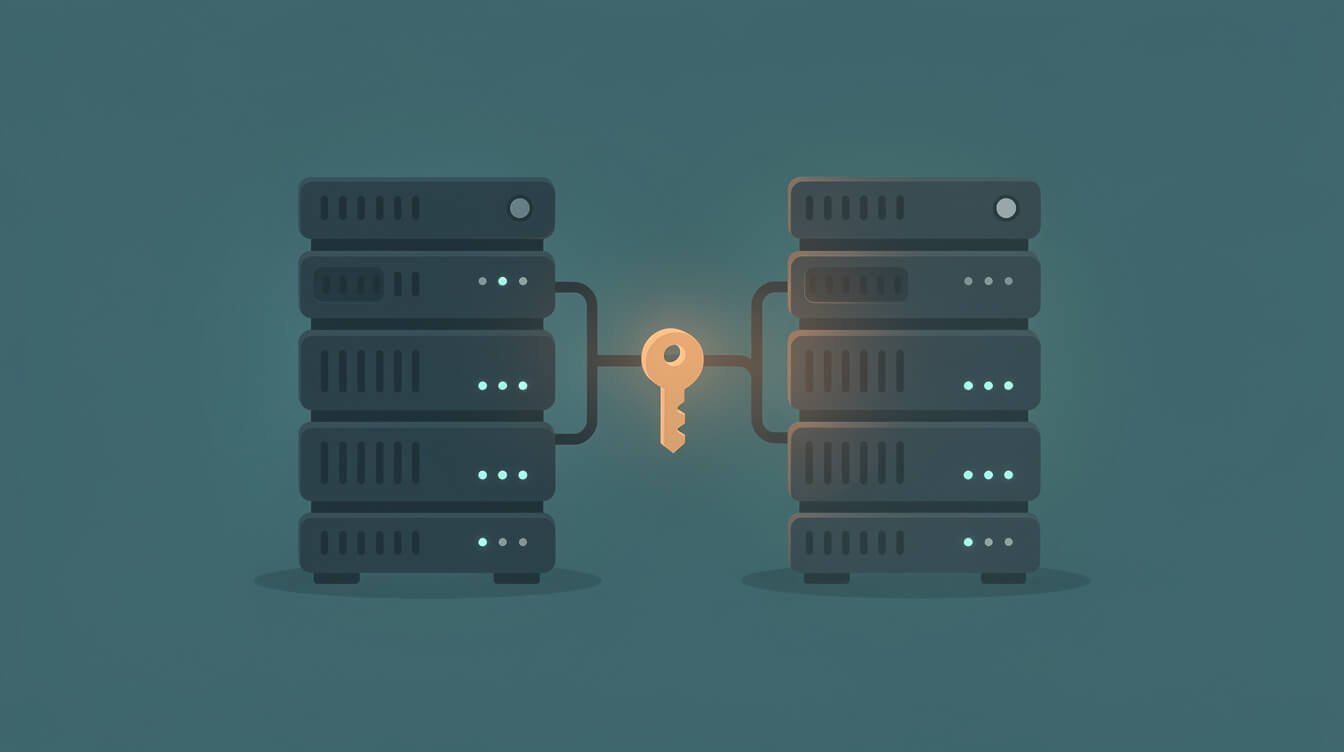
Search “obsidian mcp server” and you’ll hit a wall of GitHub repos with almost identical names. Here’s the honest, non-developer breakdown of the ones that actually matter, and the setup detail the READMEs bury.
The prerequisite nobody leads with: the Local REST API plugin
Almost every popular Obsidian MCP server does not talk to your files directly. It talks to Obsidian through a community plugin called Local REST API, which exposes your running vault over a secure local endpoint. If you install an MCP server and it “can’t connect,” this is why nine times out of ten — you skipped the plugin, or you didn’t copy its API key into the server config. Install and enable Local REST API first. Everything downstream depends on it.
The two servers worth your time
- MarkusPfundstein/mcp-obsidian — the most popular option by a wide margin (thousands of GitHub stars). It’s a Python server you run with
uvx, and it covers the essentials: list files, read notes, search, append, and patch content. If you want the well-trodden path with the most community answers when you get stuck, start here. - cyanheads/obsidian-mcp-server — a TypeScript alternative that’s actively maintained and a little richer around tags and frontmatter (Obsidian’s metadata). If you live in structured metadata and want finer control, it’s a strong pick.
Both are open source and free, which fits the way I build — I’ve written before about the honest trade-offs of running open source AI agents without a dev team, and the same “free like a puppy” caveat applies: no licence fee, but you own the setup and upkeep. For most solopreneurs, MarkusPfundstein’s server plus the Local REST API plugin is the fastest route to something that works today.
One thing to ignore: the dozens of near-duplicate “vault bridge” listings in MCP directories. They mostly wrap the same idea with less maintenance. Pick a repo with recent commits and real stars, and move on.

Get the AI Playbook I Use to Run 10 Autonomous Brands
One operator, a fleet of AI agents, and the exact systems that publish, post, and follow up without me. Grab the free playbook and I’ll send you the receipts.
How to Set Up an Obsidian MCP Server in About 10 Minutes

Here’s the path I’d hand a non-technical friend. It assumes you’re connecting to Claude Desktop, but the config idea is the same for any MCP-aware agent.
- Install the Local REST API plugin. In Obsidian, open Settings → Community plugins, browse for “Local REST API,” install and enable it. Open its settings and copy the API key it generates. Leave Obsidian running — the server needs the app open to reach your vault.
- Make sure you have the runtime. For MarkusPfundstein’s Python server you’ll want
uvinstalled (it ships theuvxrunner). It’s a one-line install on Mac or Windows; the repo’s README has the current command. - Add the server to your agent’s config. In Claude Desktop, open Settings → Developer → Edit Config. You’re adding an
mcpServersentry that names the server, the command to launch it (uvx mcp-obsidian), and two environment values: your Local REST API key and your vault’s host and port. Paste, save, and restart the app. - Confirm the connection. Back in the agent, you should now see the Obsidian tools available. Test with something read-only and low-stakes: “list the notes in my vault” or “read my note called Inbox.” If it returns your content, you’re wired up.
- Only then, try a write. Once reads work, test a gentle write like “append a line to my Scratch note.” Watch what it does. We’ll talk about why you gate writes carefully in the next section.
If it won’t connect: the three usual culprits
When people message me that their Obsidian MCP server “isn’t working,” it’s almost always one of three things. First, Obsidian isn’t running — the Local REST API only answers while the app is open, so a background agent hitting a closed vault gets nothing. Second, the API key is wrong or unpasted — copy it fresh from the plugin settings, with no stray spaces. Third, the host or port mismatches — the plugin defaults to a specific local port, and your config has to point at the same one. Fix those three and you’ve solved ninety percent of connection failures without touching a line of real code.

⚡ GET THE AI EDGE
Weekly AI tips that actually save you time and money. No fluff, no hype — just what works.
That’s genuinely the whole thing. The friction is almost never the AI part — it’s remembering the Local REST API plugin and pasting the key in the right place. If you’d rather not touch config files at all, this is exactly the kind of thing I set up for clients as a done-for-you build. You can book an automation strategy session and I’ll wire your vault, your agent, and the guardrails around it so it’s safe from day one.
The Five Security Rules I Never Break With an Obsidian MCP Server

Your vault is probably the most sensitive data you own — client names, contracts, half-formed strategy, maybe things you shouldn’t have pasted in there. Handing an autonomous agent access to it is powerful and, done carelessly, risky. These are the five rules I apply to every vault-connected agent, and they’re the same discipline I use for database access in my PostgreSQL MCP server guide.
- Start read-only, always. For the first week, only enable read and search tools. Let the agent prove it’s useful before it can change anything. Most of the value — answering, summarising, drafting — needs no write access at all.
- Scope the vault, or use a dedicated one. If your vault holds truly private material, point the server at a separate “work” vault that contains only what the agent needs. Don’t expose your journal to a marketing assistant.
- Keep secrets out of reachable notes. An agent that can read your vault can read anything in it. Move API keys, passwords, and financials out of notes the server can see. Treat the connected vault as “readable by a helpful stranger.”
- Put version control under it. Sync your vault with Git or a versioned backup. If an agent writes something wrong, you want a one-click undo, not a panic. This turns every mistake into a diff instead of a disaster.
- Watch the first writes, then automate slowly. When you do enable writes, review them like you’d review a new assistant’s work — closely at first, then loosen as trust builds. Never jump straight to “let it edit everything unattended.”
None of this is hard. It’s just the difference between an agent that’s a force multiplier and one that quietly corrupts your notes while you’re asleep. Read-only by default is the single habit that prevents almost every bad outcome.
How I Actually Use It: Real Build-Log Receipts

Enough theory — here’s what a vault-connected agent does in my actual operation. My agents run in Docker containers on a small server, on a schedule, and file-based notes are their shared memory. A few real patterns:
- Notes as durable memory. Each brand keeps a running memory note. When an agent finishes a job, it writes what it did and learned back to that note, so tomorrow’s run starts caught up instead of cold. That handoff is the backbone of the whole fleet — the practical version of the no-vector-database memory approach I’ve documented.
- Research → draft handoff. A research agent reads competitor pages and drops structured notes into the vault. A writing agent later reads those notes and drafts from them. Neither needs the other to be online; the vault is the mailbox between them.
- Decisions I can query. When I make a call — a pricing change, a positioning tweak — it goes in a note. Weeks later I can ask an agent “why did we move off retainers?” and it answers from the record, not from vibes.
- Part of a bigger stack. The vault connection is one tool among several. It sits alongside the rest of my AI-powered productivity stack — the schedulers, the publishing APIs, the monitoring — and the notes are the connective tissue that keeps it coherent.
The takeaway isn’t “copy my exact setup.” It’s that once your agent can read and write your notes, your knowledge compounds. Every note you write makes every future agent run a little smarter. That flywheel is the real reason an obsidian mcp server is worth the ten minutes.
Obsidian MCP Server FAQ
Do I need to be a developer to use an obsidian mcp server?
No, but you do need to be comfortable editing one config file and installing a small runtime. If copying an API key into a JSON file makes you nervous, that’s fine — it’s a common thing to have set up for you. The concepts are simple; the friction is purely mechanical.
Is it safe to give an AI agent access to my vault?
Yes, if you follow read-only-by-default, keep secrets out of reachable notes, and put version control under your vault. The risk isn’t the connection itself — it’s granting broad write access before you trust the agent. Start narrow.
Which server should a beginner pick?
Start with MarkusPfundstein’s mcp-obsidian plus the Local REST API plugin. It’s the most popular, best-documented path, so when you hit a snag there’s an answer waiting. Move to cyanheads’ TypeScript server later if you need deeper tag and frontmatter control.
Does this cost anything?
The servers and the plugin are free and open source. Your only real cost is the AI model usage (tokens) when the agent reads and reasons over your notes — typically small for personal use. There’s no subscription for the connector itself.
Will it work with agents other than Claude?
Yes. MCP is an open standard, so any MCP-aware agent or client can use the same Obsidian server. The config location differs per client, but the server and the Local REST API prerequisite are the same.
Final Thoughts
An obsidian mcp server is a small piece of plumbing with an outsized effect: it turns your carefully built vault from a place you store knowledge into a place your AI agent can actually use it. Install the Local REST API plugin, pick one well-maintained server, start read-only, and you’ll have a genuinely context-aware assistant in an afternoon — no dev team, no vector database, no six-figure tooling.
The bigger idea underneath all of this is the one I keep coming back to: your notes are an asset, and connecting them to an agent is how that asset starts working for you while you sleep. If you’d rather skip the config wrangling and have the whole thing — vault, agent, and guardrails — built for you, book an automation strategy session and I’ll set it up properly the first time.
Get the AI Playbook I Use to Run 10 Autonomous Brands
One operator, a fleet of AI agents, and the exact systems that publish, post, and follow up without me. Grab the free playbook and I’ll send you the receipts.
📥 FREE: THE AI PLAYBOOK
The exact tools and workflows I use to run a one-person agency. 25 years of marketing experience distilled into an actionable guide. Yours free.

AI & Digital Marketing Strategist
With over 25 years in digital marketing, e-commerce, sales, and international business, Jon Jones is a seasoned entrepreneur dedicated to empowering small businesses through innovative AI solutions. His journey began in investment banking on Wall Street, guiding companies through capital acquisition and complex markets, and has expanded to include expertise in web development, brand design, product development, and courses and training.
Fluent in Mandarin and with a rich foundation in both finance and tech, Jon launched JonJones.ai to provide accessible, transformative tools for small businesses to streamline operations, generate leads, and build sustainable growth. His mastery of AI, automation, and digital strategy has enabled numerous businesses to bridge the gap between traditional practices and modern technology, ensuring they thrive in today’s digital landscape.