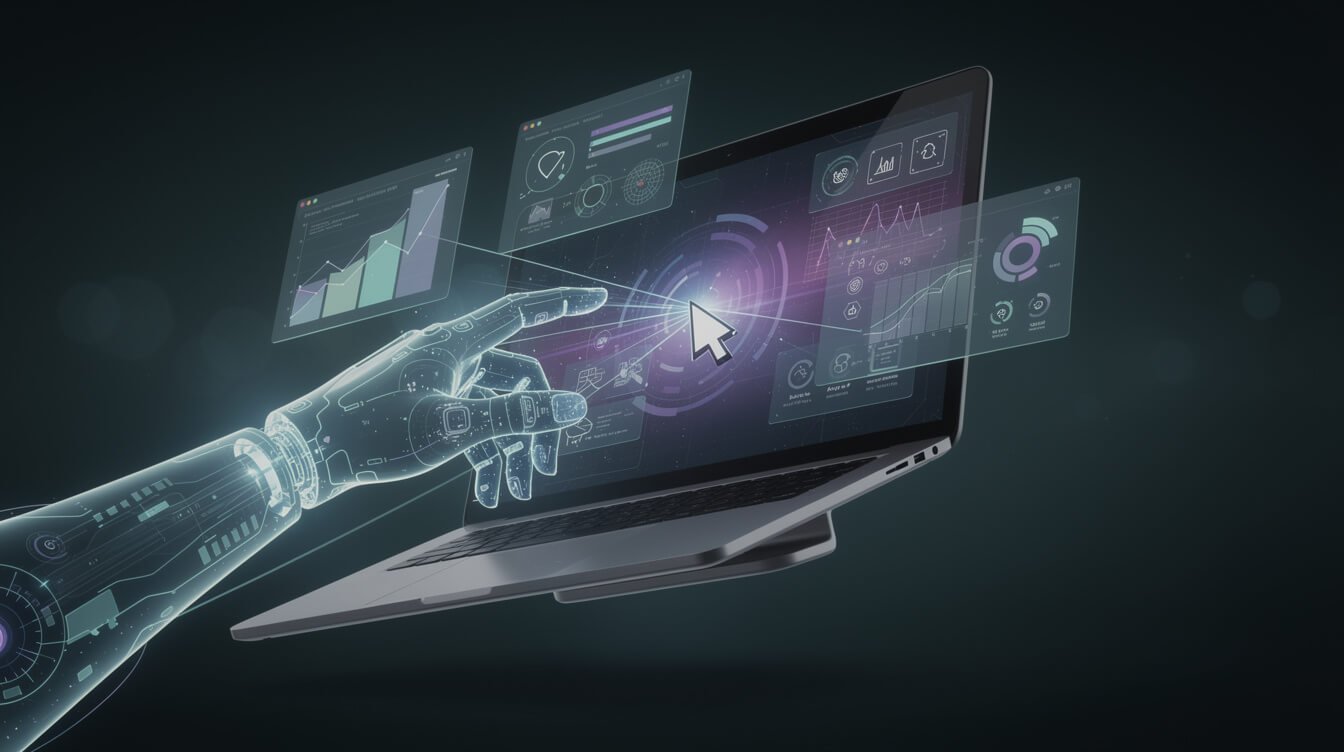
Claude Computer Use is the feature that finally makes the phrase “AI agent” mean what you always thought it meant: an AI that looks at your screen, moves the cursor, clicks the buttons, and types the text — the same way you do. No API integration required on the far end. No custom connector. If a human can do it with a mouse and keyboard, Claude can attempt it too.
Here’s the problem. Every guide on the internet about Claude Computer Use is written for developers. Beta headers, Docker containers, request loops, screenshot payloads. Useful if you write Python for a living. Useless if you’re a solopreneur who just wants to know: what can this actually do for my business, and should I bother?
This is the honest, operator’s guide I wish existed. I run more than ten autonomous businesses on Claude, and I’ve put computer use through real work — not demos. Below is what it is, when to use it (and when absolutely not to), the seven tasks where it earns its keep, and exactly how to get your hands on it today.
What Claude Computer Use Actually Is (And Why It’s Different from Everything Else)

Most AI tools live inside a chat box. You type, they reply. Even the clever ones that “take actions” do it through pre-built integrations — a Zapier connector here, an API there. Someone had to wire that plumbing in advance. If the tool you want to automate doesn’t expose an API, you’re stuck.
Computer use throws that limitation out. Anthropic gives Claude three primitive abilities: take a screenshot (so it can see what’s on screen), control the mouse (click, drag, move), and control the keyboard (type, hotkeys). That’s it. From those three primitives, Claude can operate any software with a visual interface — a legacy CRM with no API, a clunky government portal, a desktop app from 2009. It navigates the way you would: it looks, it decides, it acts, it looks again.
Anthropic first shipped this in October 2024 as the first frontier model to offer computer use in public beta, and it was, in their own words, cumbersome and error-prone at launch. The 2026 versions are a different animal — on WebArena, a benchmark for navigating real websites, Claude now posts state-of-the-art results among single-agent systems. It’s still a beta feature, but it has crossed the line from “cool demo” to “does real work if you scope it right.”
The mental model that matters: computer use is Claude with eyes and hands, driving a screen. Everything else in this guide follows from that one idea.
Computer Use vs. MCP vs. Regular Claude: When to Use Which

This is the decision that trips people up, so let’s kill the confusion. You have three ways to make Claude do things, and they are not interchangeable.
Regular Claude (the chat you already know) reads and writes text. It drafts, summarizes, plans, codes. It doesn’t touch the outside world. Reach for it when the deliverable is the text.
MCP (Model Context Protocol) is the clean, structured way to give Claude real tools — a database, your GitHub, a browser, your files — through a defined connection. It’s fast, reliable, and cheap because it talks to software the way software wants to be talked to. If a tool has an MCP server, that is almost always the right choice. I’ve written a full walkthrough of connecting Claude to every tool you use with MCP, and a deep dive on the Playwright MCP server for browser control specifically.
Computer use is the last resort that’s also the most powerful. It’s slower and pricier than MCP because Claude is literally taking screenshots and reasoning about pixels. But it works when nothing else can — when there’s no API, no MCP server, no integration, and the only door in is the graphical interface a human uses.
Here’s my rule of thumb, and I apply it every time:
- Text in, text out? Regular Claude.
- A structured tool exists (API or MCP server)? Use MCP. Always prefer it.
- The only way in is a screen a human clicks through? Now — and only now — reach for computer use.
If you take one thing from this section: computer use is not a replacement for MCP. It’s the tool you use when MCP isn’t an option. Confusing the two is how people burn tokens automating something that had a clean API the whole time.
The 7 Real-World Tasks Where Claude Computer Use Actually Shines
Forget the toy demos. Here are the tasks where I’ve seen computer use pull genuine weight for a one-person business:
- Competitor research runs. Point Claude at a list of competitor sites and let it browse, screenshot pricing pages, read positioning, and compile a summary. No scraper to maintain, no API keys.
- Filling out the same form 40 times. Supplier portals, directory submissions, application forms — the soul-crushing repetitive stuff. Claude reads your source data and types it into the boxes.
- Operating legacy software with no API. That ancient inventory system or booking tool your business depends on? Computer use drives it like a person.
- Cross-app workflows. Copy a value out of a web dashboard, log into another tool, paste it in, hit save. The connective tissue work that no single integration covers.
- QA-ing your own website. “Go to my checkout page, add a product, try to pay with a test card, tell me where it breaks.” Claude clicks through the funnel and reports back.
- Data entry from screenshots or PDFs into a web UI. It reads the source, opens the destination, and transcribes — with judgment about where each field goes.
- Multi-step account setup and configuration. Spinning up a new tool’s settings, toggling the same twelve options across accounts, following a setup checklist that lives entirely in a dashboard.
Notice the pattern: every one of these is visual, repetitive, and lacks a clean API. That’s the sweet spot. If your task has an API, don’t do this — an agentic AI setup or MCP connection will be faster and cheaper every time.
Here’s the honest counterweight, though: none of these are “set it and forget it on day one.” Every one of them is worth automating precisely because it’s a task you do repeatedly — the payoff comes from amortising a bit of setup across dozens of runs. If a task is a genuine one-off, you’ll usually finish it faster by hand than by teaching Claude to click through it. The math flips the moment “I have to do this again next week” becomes “I have to do this every week.” That’s the filter I run every candidate task through before I bother wiring up a computer-use loop.

Get the AI Playbook (Free)
The exact playbook I use to run 10+ autonomous businesses with Claude — real workflows, real receipts, zero fluff. Drop your email and I’ll send it over.
How to Access Claude Computer Use Today (3 Different Ways)

You don’t need to be a developer to try this. There are three on-ramps, in order of how much technical lift they require:
1. Cowork (the no-code path)
Anthropic ships a “let Claude use your computer” experience inside Cowork, where you grant Claude permission and watch it operate in a controlled session. This is the closest thing to a point-and-click front door. If you’ve never written a line of code, start here. You approve what it’s allowed to touch and you can watch every move.
2. The reference implementation (a guided middle path)
Anthropic publishes a ready-to-run demo environment — a containerized virtual desktop Claude controls in a sandbox. You run one setup, open a browser window, and give Claude tasks in a safe, disposable machine. It’s the best way to experiment without pointing an AI at your real files. A little technical, but the instructions are copy-paste.
3. The API (full control, for builders)
The raw power lives in the API, where computer use is enabled with a beta header and Claude returns actions your code executes in a loop. This is what you’d wire into an autonomous system. It’s how the serious automation gets built — and if you’re heading in that direction, my Claude Agent SDK guide covers the framework that makes managing these loops sane.

⚡ GET THE AI EDGE
Weekly AI tips that actually save you time and money. No fluff, no hype — just what works.
My advice for a solopreneur just starting: begin with Cowork or the reference sandbox. Learn how Claude “thinks” through a screen before you ever let it near production. The API can wait until you have a workflow worth automating for real.
A Real Session: What Happens When You Let Claude Control Your Browser
People imagine this as magic. It isn’t. Watching a computer use session is more like watching a careful, slightly slow assistant who narrates their reasoning. Here’s the actual loop, every single cycle:
- Claude takes a screenshot of the current screen.
- It reasons out loud — “I see a login form. I need to click the email field first.”
- It acts — moves the cursor, clicks, types.
- It takes another screenshot to check what happened.
- Repeat until the task is done or it gets stuck.
That screenshot-reason-act-verify rhythm is the whole game. It’s also why computer use is slower than you’d expect: each step is a full round-trip. A task that takes you 30 seconds might take Claude three minutes. That’s fine when the task is one you’d rather never do again.
Here’s a concrete example from my own week. I gave Claude one instruction: “Go to these five competitor sites, find each one’s pricing page, and tell me what changed since last month.” It opened the first site, took a screenshot, couldn’t find pricing in the nav, scrolled, spotted a “Plans” link in the footer, clicked it, read the tiers, screenshotted, and moved to site two. On site three it hit a cookie wall, dismissed it, and carried on. Fifteen minutes later I had a tidy comparison I’d have spent an hour assembling — and I did zero clicking. It wasn’t flawless (it misread one annual-vs-monthly toggle and I corrected it), but it was unquestionably faster than doing it myself, and it will be faster still the next time because I’ve now written that toggle quirk into the instructions.
What surprises first-timers is how it recovers. Click the wrong thing? It sees the unexpected screen, realizes the mistake, and course-corrects — the same way you would. But it also gets genuinely stuck on things a human breezes past: a surprise cookie banner, a CAPTCHA, a modal that pops up over the button it wanted. Scope your tasks so those traps are rare, and the success rate climbs sharply. This self-correcting, goal-seeking behavior is exactly what separates true autonomous agents from simple scripted macros.
The Guardrails: What Claude Won’t Do (and Shouldn’t)

Handing an AI control of your mouse and keyboard should make you a little nervous. Good — that instinct keeps you safe. Here’s how to stay in control.
What Anthropic builds in: computer use runs with safety classifiers, and Claude is trained to refuse clearly harmful actions. The recommended setups run inside a sandbox or virtual desktop specifically so the AI isn’t loose on your real machine.
What you must enforce yourself:
- Never run it unsupervised on your primary machine with access to banking, email, or anything you can’t afford to have clicked wrong. Use a sandbox or a dedicated account.
- Keep a human in the loop for anything irreversible — payments, sending messages, deleting records. Have Claude prepare the action and stop for your approval.
- Watch out for prompt injection. A malicious webpage can contain hidden text trying to hijack Claude’s instructions. Only point it at sites you trust, and don’t let it wander.
- Limit its blast radius. Give it the narrowest access that gets the job done — one account, one browser profile, no saved passwords it doesn’t need.
The golden rule I live by: computer use is for tasks that are tedious, not tasks that are dangerous. Automate the 40 form fills. Keep your hand on the wheel for the wire transfer.
Building an Automation Loop With Claude Computer Use
Once you’re comfortable, the real payoff is turning a one-off session into a repeatable loop that runs without you. This is where computer use stops being a party trick and starts being an employee.
The pattern I use looks like this. First, define the task narrowly — “log into portal X, download this week’s report, save it to this folder.” Vague goals fail; specific ones succeed. Second, run it supervised a few times and note where it stumbles. Third, write the stumbles into the instructions — “if a cookie banner appears, dismiss it first.” Fourth, once it’s reliable, trigger it on a schedule or an event so it fires while you sleep.
The best computer-use loops are the ones you graduate off of computer use. If you automate a form-fill and later discover the tool has an API, move it to MCP — faster, cheaper, more reliable. Think of computer use as the bridge that gets a workflow automated today, before you have time to build the proper integration. In my stack, plenty of tasks start life as a computer-use loop and get promoted to a clean MCP connection once they prove their worth. That progression — from “Claude clicks it” to “Claude calls it” — is the whole arc of building an autonomous business one workflow at a time.
Frequently Asked Questions About Claude Computer Use
Is Claude Computer Use free?
The capability is available through Anthropic’s paid tiers and API. It consumes tokens like any Claude usage, and because it processes screenshots, it uses more of them. There’s no separate “computer use subscription” — you pay for the model usage. Start small to gauge cost before you scale a loop.
Do I need to know how to code to use it?
No. Through Cowork you can grant Claude computer control with no code at all. Coding only becomes necessary if you want to build custom automated loops via the API.
Is it safe to let Claude control my computer?
It’s safe when you scope it correctly: run it in a sandbox or a limited account, keep a human approving anything irreversible, and only point it at trusted sites. It’s risky if you turn it loose on your main machine with full access. Treat it like a capable new hire, not a trusted veteran.
How is it different from an MCP server?
An MCP server gives Claude a clean, structured connection to a tool — fast and reliable. Computer use makes Claude operate the tool’s visual interface like a human — slower, but it works when no API or MCP server exists. Prefer MCP whenever it’s available.
What tasks is Claude Computer Use best at right now?
Visual, repetitive, API-less tasks: competitor research, repeated form filling, operating legacy software, cross-app copy-paste workflows, and QA-ing your own site. It struggles with CAPTCHAs, surprise pop-ups, and anything needing split-second precision.
Final Thoughts: Should You Actually Use It?
Claude Computer Use is the most futuristic thing in the AI toolkit right now — and also the one you should reach for least often. That’s not a contradiction. It’s the last-resort superpower: when there’s no API, no MCP server, and no integration, it’s the only tool that can still get the job done, because it does the job the way a human does.
For solopreneurs, the play is simple. Don’t automate everything with it — automate the tedious, visual, API-less tasks that eat your afternoons, keep a human hand on anything irreversible, and graduate workflows to MCP the moment a cleaner path opens up. Do that, and you’ve added a tireless assistant that can operate literally any screen in your business. Start with one boring task this week. Watch Claude click through it. Then decide what else you never want to do by hand again.
Get the AI Playbook (Free)
The exact playbook I use to run 10+ autonomous businesses with Claude — real workflows, real receipts, zero fluff. Drop your email and I’ll send it over.
📥 FREE: THE AI PLAYBOOK
The exact tools and workflows I use to run a one-person agency. 25 years of marketing experience distilled into an actionable guide. Yours free.

AI & Digital Marketing Strategist
With over 25 years in digital marketing, e-commerce, sales, and international business, Jon Jones is a seasoned entrepreneur dedicated to empowering small businesses through innovative AI solutions. His journey began in investment banking on Wall Street, guiding companies through capital acquisition and complex markets, and has expanded to include expertise in web development, brand design, product development, and courses and training.
Fluent in Mandarin and with a rich foundation in both finance and tech, Jon launched JonJones.ai to provide accessible, transformative tools for small businesses to streamline operations, generate leads, and build sustainable growth. His mastery of AI, automation, and digital strategy has enabled numerous businesses to bridge the gap between traditional practices and modern technology, ensuring they thrive in today’s digital landscape.